Laboratory
The Laboratory is Hive’s powerful GraphQL playground that provides a comprehensive environment for exploring, testing, and experimenting with your GraphQL APIs. Whether you’re developing new queries, debugging issues, or sharing operations with your team, the Laboratory offers all the tools you need.
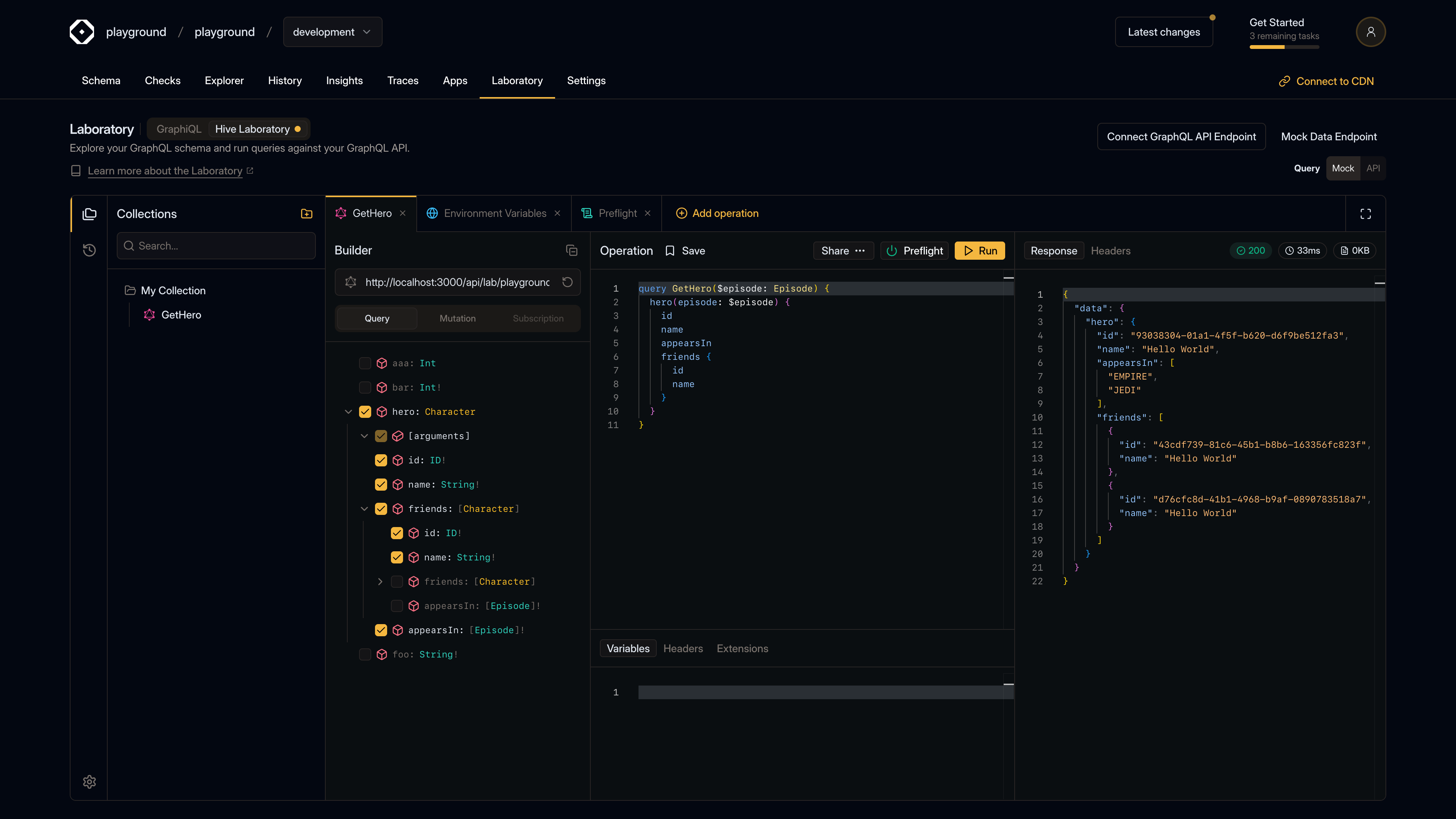
Overview
The Laboratory combines the best features of a GraphQL IDE with advanced capabilities for managing operations, testing scripts, and organizing your work. It’s designed to be both powerful for experienced developers and approachable for those new to GraphQL.
Key Features
Operations
Create and execute GraphQL queries, mutations, and subscriptions with full syntax highlighting, auto-completion, and validation. The Laboratory supports all GraphQL operation types and provides real-time feedback.
Schema Support
Automatically introspect your GraphQL schema and use the visual Builder to explore available types, fields, and arguments. The schema-aware editor helps you build valid operations quickly.
Collections
Organize your operations into collections for better project management. Group related queries together, share collections with your team, and keep your workspace organized.
Preflight Scripts
Run custom TypeScript scripts before executing operations. Use preflight scripts to modify headers, set environment variables, perform authentication, or add any custom logic you need.
Environment Variables
Manage environment-specific variables that can be used across all your operations. Perfect for switching between development, staging, and production environments.
History
Track all your operation executions with detailed response data, timing information, and error logs. Review past requests to debug issues or understand API behavior.
Getting Started
To start using the Laboratory:
- Set your endpoint - Enter your GraphQL API endpoint in the Builder panel
- Explore the schema - Use the Builder to browse available queries, mutations, and subscriptions
- Create an operation - Click “Add operation” or use the Builder to build a query visually
- Run and test - Execute your operation and review the response
Navigation
The Laboratory interface is organized into several key areas:
- Left sidebar - Access Collections and History panels
- Builder panel - Visual schema explorer and endpoint configuration
- Operation editor - Write and edit your GraphQL operations
- Response panel - View operation results, headers, and logs
- Settings menu - Access Environment Variables, Preflight Scripts, and Command Palette
Keyboard Shortcuts
⌘J/Ctrl+J- Open Command Palette⌘↵/Ctrl+Enter- Run active operation
Next Steps
Explore the detailed guides for each feature:
- Operations - Learn how to create and execute GraphQL operations
- Schema Support - Understand how to use the Builder and schema introspection
- Collections - Organize and manage your operations
- Preflight - Write and use preflight scripts
- Environment Variables - Configure environment-specific settings
- History - Review and manage operation execution history