Preflight Scripts
Preflight scripts are custom TypeScript scripts that run automatically before executing GraphQL operations. They enable you to modify requests, set up authentication, manipulate headers, and perform any custom logic you need.
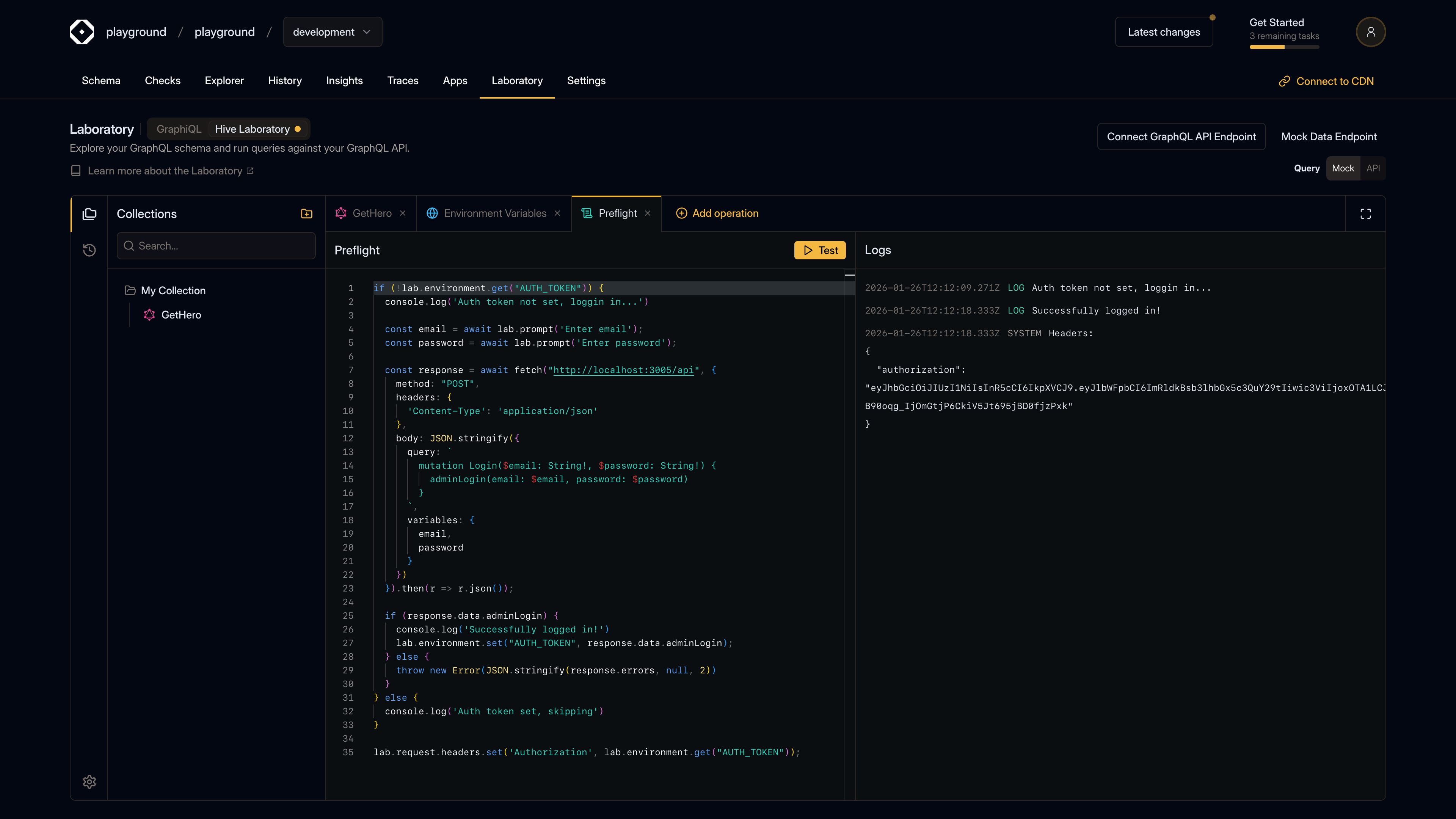
What are Preflight Scripts?
Preflight scripts give you programmatic control over your GraphQL requests. They run in an isolated environment before each operation execution and can:
- Modify headers - Add, update, or remove HTTP headers
- Set environment variables - Configure variables dynamically
- Perform authentication - Generate tokens, sign requests, etc.
- Transform requests - Modify queries, variables, or extensions
- Add logging - Log information for debugging
Enabling Preflight
To enable preflight for your operations:
- Open the Settings menu (gear icon in the left sidebar)
- Select “Preflight Script”
- Toggle the “Preflight” switch in the operation toolbar to enable/disable
When enabled, the preflight script runs before every operation execution.
Writing Preflight Scripts
Preflight scripts are written in TypeScript and have access to a special lab object that provides
APIs for interacting with the request and environment.
Basic Structure
// Access environment variables
lab.environment.set('API_KEY', 'your-api-key')
const apiKey = lab.environment.get('API_KEY')

// Modify request headers
lab.request.headers.set('Authorization', `Bearer ${apiKey}`)

// Prompt for user input (if needed)
const token = await lab.prompt('Enter your token:', 'default-value')
Available APIs
Environment Variables
// Set an environment variable
lab.environment.set('key', 'value')

// Get an environment variable
const value = lab.environment.get('key')

// Delete an environment variable
lab.environment.delete('key')
Request Headers
// Set a header
lab.request.headers.set('Authorization', 'Bearer token')

// Get a header
const auth = lab.request.headers.get('Authorization')

// Delete a header
lab.request.headers.delete('X-Custom-Header')
User Prompts
// Prompt for input (shows a modal dialog)
const value = await lab.prompt('Enter your API key:', 'default-value')

// Returns null if user cancels
if (value === null) {
  // Handle cancellation
}
CryptoJS Library
The preflight environment includes the CryptoJS library for cryptographic operations:
// Hash data
const hash = CryptoJS.SHA256('data').toString()

// Encrypt data
const encrypted = CryptoJS.AES.encrypt('message', 'secret-key').toString()

// Decrypt data
const decrypted = CryptoJS.AES.decrypt(encrypted, 'secret-key').toString(CryptoJS.enc.Utf8)

// HMAC
const hmac = CryptoJS.HmacSHA256('message', 'secret-key').toString()
Common Use Cases
Authentication
Add authentication tokens to requests:
// Get token from environment
const token = lab.environment.get('AUTH_TOKEN')

if (!token) {
  // Prompt if not set
  const newToken = await lab.prompt('Enter authentication token:')
  if (newToken) {
    lab.environment.set('AUTH_TOKEN', newToken)
    lab.request.headers.set('Authorization', `Bearer ${newToken}`)
  }
} else {
  lab.request.headers.set('Authorization', `Bearer ${token}`)
}
API Key Management
Manage API keys dynamically:
const apiKey = lab.environment.get('API_KEY') || 'default-key'
lab.request.headers.set('X-API-Key', apiKey)
Request Signing
Sign requests for security:
const secret = lab.environment.get('SIGNING_SECRET')
const timestamp = Date.now().toString()
const signature = CryptoJS.HmacSHA256(timestamp, secret).toString()

lab.request.headers.set('X-Timestamp', timestamp)
lab.request.headers.set('X-Signature', signature)
Dynamic Headers
Set headers based on conditions:
const environment = lab.environment.get('ENV') || 'development'

if (environment === 'production') {
  lab.request.headers.set('X-Environment', 'prod')
} else {
  lab.request.headers.set('X-Environment', 'dev')
}
Testing Preflight Scripts
You can test your preflight scripts without running an operation:
- Open the Preflight Script tab (from Settings menu)
- Write or edit your script
- Click “Test” to run the script
- Review the logs in the right panel
Logs
When testing or running preflight scripts, you’ll see logs showing:
- Info messages - General information
- Warnings - Non-critical issues
- Errors - Script failures
- System messages - Internal Laboratory messages
Logs are color-coded for easy identification:
- Blue - Info
- Green - Success/Log
- Yellow - Warning
- Red - Error
- Gray - System
Preflight Execution Flow
When you run an operation with preflight enabled:
- Preflight script executes - Your TypeScript code runs
- Environment updates - Any environment variable changes are applied
- Headers modified - Request headers are updated
- Operation executes - The GraphQL request is sent
- Response received - Results are displayed
If the preflight script fails (throws an error), the operation will not execute and you’ll see an error in the response.
Error Handling
Preflight scripts should handle errors gracefully:
try {
  const token = lab.environment.get('TOKEN')
  if (!token) {
    throw new Error('Token not found')
  }
  lab.request.headers.set('Authorization', `Bearer ${token}`)
} catch (error) {
  console.error('Preflight error:', error)
  // Operation will fail if preflight fails
}
Best Practices
- Keep scripts simple - Preflight scripts should be focused and concise
- Use environment variables - Store sensitive data in environment variables, not in scripts
- Handle errors - Always handle potential errors gracefully
- Test thoroughly - Use the Test feature to verify scripts work correctly
- Document complex logic - Add comments for non-obvious code
- Reuse patterns - Create reusable patterns for common tasks
Security Considerations
- Never commit secrets - Don’t hardcode API keys or tokens in scripts
- Use environment variables - Store sensitive data in environment variables
- Validate inputs - Validate any user-provided input from prompts
- Sanitize data - Clean any data before using it in headers or requests
Limitations
Preflight scripts run in an isolated environment with:
- No network access - Cannot make HTTP requests
- Limited APIs - Only the provided
labobject and CryptoJS - No file system - Cannot read or write files
- No DOM access - Cannot interact with the page
Troubleshooting
Script Not Running
If your preflight script doesn’t run:
- Check that preflight is enabled (toggle in operation toolbar)
- Verify the script has no syntax errors
- Check the logs for error messages
Environment Variables Not Persisting
Environment variables set in preflight are available:
- During the current operation execution
- In subsequent operations (if saved to environment)
- Until the Laboratory session ends
To persist across sessions, save them in the Environment Variables tab.
Prompts Not Appearing
If prompts don’t appear:
- Check that
lab.prompt()is being called with await - Verify the script is actually executing
- Check browser console for errors
Headers Not Applied
If headers aren’t being set:
- Verify
lab.request.headers.set()is being called - Check that the script completes without errors
- Review the logs for any issues