Operations
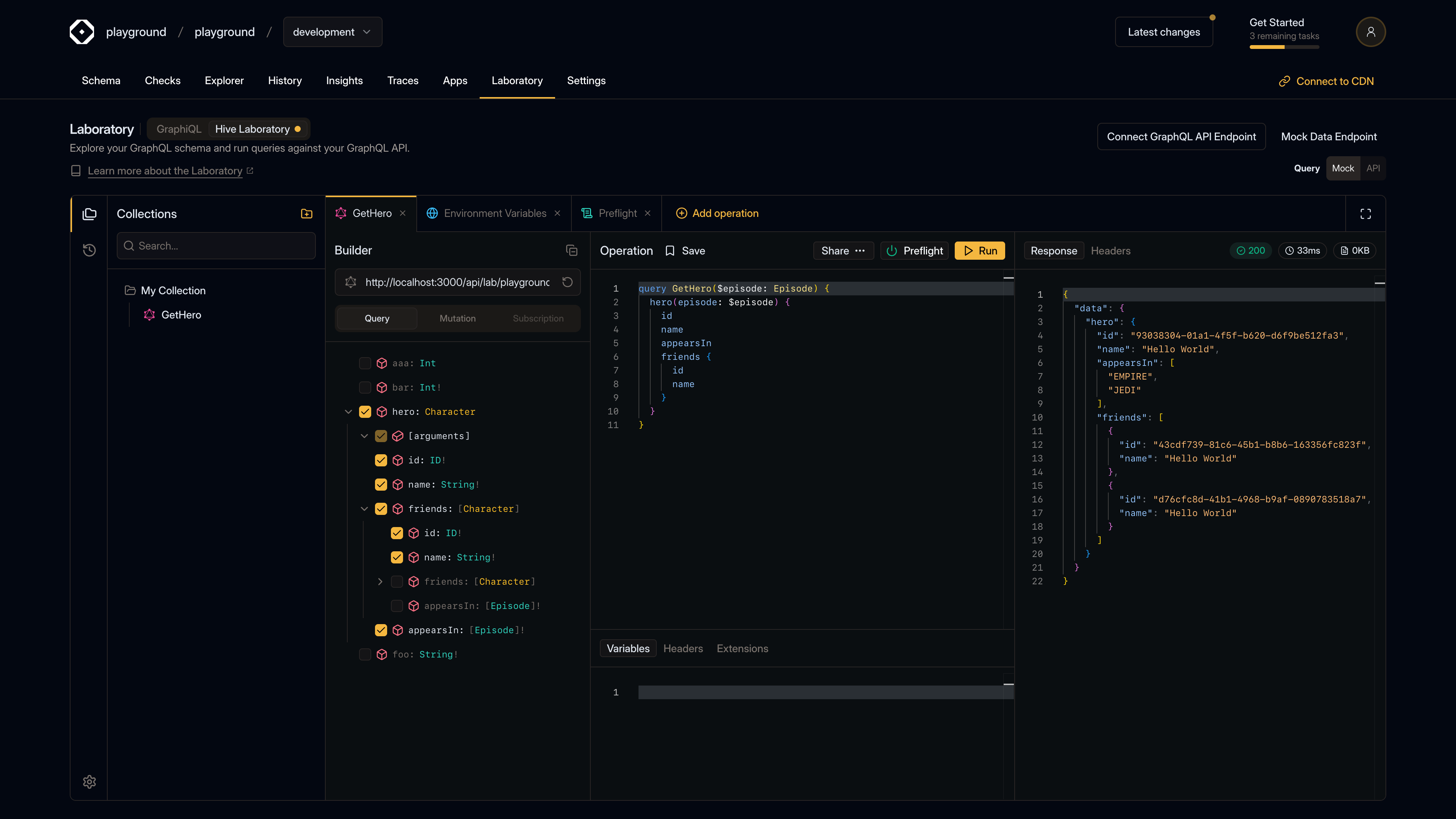
Operations are the core of the Laboratory. They represent GraphQL queries, mutations, and subscriptions that you can create, edit, execute, and share.
Creating Operations
You can create operations in several ways:
From the Builder
The easiest way to create a new operation is using the visual Builder:
- Select a field from the schema in the Builder panel
- Check the boxes for fields and arguments you want to include
- The operation query is automatically generated in the editor
Manually
To create an operation manually:
- Click “Add operation” from the empty state or use the Command Palette (
⌘J) - Start typing your GraphQL query, mutation, or subscription in the editor
- The editor provides syntax highlighting and auto-completion based on your schema
From Collections
Operations saved in collections can be opened directly:
- Open the Collections panel from the left sidebar
- Click on any operation in a collection
- It will open in a new tab ready to edit or execute
Operation Components
Each operation consists of several parts:
Query
The GraphQL operation itself - a query, mutation, or subscription. The editor provides:
- Syntax highlighting - Color-coded GraphQL syntax
- Auto-completion - Schema-aware suggestions as you type
- Validation - Real-time error checking
- Formatting - Automatic code formatting
Variables
GraphQL variables for parameterizing your operations. Variables are defined in JSON format:
{
  "userId": "123",
  "limit": 10
}
Variables are referenced in your query using the $variableName syntax.
Headers
Custom HTTP headers to send with your request. Headers are defined in JSON format:
{
  "Authorization": "Bearer your-token-here",
  "X-Custom-Header": "value"
}
Extensions
GraphQL extensions for additional metadata. Extensions are defined in JSON format and can include:
- Persisted query IDs
- Custom directives
- Any other extension data your API requires
Executing Operations
Running Operations
To execute an operation:
- Make sure you have an endpoint configured (see Schema Support)
- Click the “Run” button in the operation toolbar, or
- Press
⌘↵(Mac) orCtrl+Enter(Windows/Linux)
The operation will be sent to your GraphQL endpoint and the response will appear in the right panel.
Subscriptions
For subscription operations, the Laboratory will:
- Establish a WebSocket connection to your endpoint
- Display incoming messages in real-time
- Show a “Listening” badge when actively receiving data
- Allow you to stop the subscription at any time
Preflight Execution
If you have a preflight script enabled, it will run before your operation executes. See Preflight for more details.
Viewing Responses
After executing an operation, you’ll see:
Response Body
The main response data in formatted JSON. The Laboratory automatically formats the response for readability.
Response Headers
All HTTP headers returned by the server, including:
- Status codes
- Content-Type
- Custom headers
- CORS headers
Response Metadata
For each execution, you’ll see:
- Status code - HTTP status (200, 400, 500, etc.)
- Duration - How long the request took in milliseconds
- Size - Response size in kilobytes
Error Handling
If an operation fails, you’ll see:
- GraphQL errors in the response body
- HTTP error status codes
- Detailed error messages
- Preflight logs (if applicable)
Saving Operations
To Collections
Save operations to collections for organization:
- Click the “Save” button (bookmark icon) in the operation toolbar
- Select a collection from the dropdown
- The operation is now saved and can be accessed from the Collections panel
Sharing Operations
Share operations with your team:
- Click the “Share” button in the operation toolbar
- Choose what to include:
- Query only
- Query with variables
- Query with variables and extensions
- Query with variables, extensions, and headers
- A shareable URL is copied to your clipboard
The shared URL can be opened by anyone with access to your Laboratory, and it will automatically load the operation.
Operation Tabs
The Laboratory supports multiple operations open at once:
- Multiple tabs - Work on several operations simultaneously
- Tab switching - Click tabs to switch between operations
- Tab management - Close tabs individually or all at once
Each tab maintains its own:
- Query, variables, headers, and extensions
- Execution history
- Editor state
Keyboard Shortcuts
⌘↵/Ctrl+Enter- Run active operation⌘J/Ctrl+J- Open Command Palette
Best Practices
- Name your operations - Give operations descriptive names for easier identification
- Use variables - Parameterize your queries with variables for reusability
- Save to collections - Organize related operations together
- Review history - Check past executions to understand API behavior
- Test edge cases - Use the Laboratory to test error scenarios and edge cases